Showing posts with label copy. Show all posts

Monday, October 13, 2014

Sharing Files With Colleagues

I have found to never underestimate the power of sharing.  If you followed my previous tip you are taking a lot of pictures.  Maybe you would like to share them???  Sharing goes beyond pictures.

As a teacher there are a lot of resources that need to be shared and they may not be resources available in the student database.  For example, I'm in the Ohio Resident Educator Program and need to share documents with my mentor.  By using a Dropbox folder I can work on Word Documents downloaded from ODE and save them to a folder local to my computer.  Then I have access to them virtually anywhere and can share the folder with my mentor.  Dropbox is similar to Google Drive installed on your computer but does not try to convert your files to the Google format.  Check out Dropbox

View this video of how it works: Using Dropbox

Another method for sharing is the Google Drive.  Files in the Google Drive can be shared with others to view only or view and edit. I share files with my mentor using Google Drive yet share forms and documents with students and coworkers using Google Drive, especially those documents created in Google Drive.  It doesn't seem necessary for every teacher to collect and update the same data so I collect student favorites in a form and shared it with colleagues so they were in the loop too.

Learn more about collaborating with Google Drive below.


The key to either system is to make sure when the files are shared to edit that you have an understanding that it can be changed or even removed from the folder by the people sharing it.  If you want the files to be viewed and not edited make sure you choose that option. If you want the originals intact but want to allow others to edit a file make sure you make a copy first and share the copy.

And for this Tuesday...happy sharing!

Tuesday, August 26, 2014

Print Screen


This week's tech tip is simple!  Often you need to save a screen you were working on or an error message that just popped up but you can not save it in the traditional save as... method and there is no print button.  This is when print screen becomes beneficial.


  • On your PC/laptop the keyboard has a Print Screen or PRTSCR button.  When you press this in most cases you see nothing happen.  What occurs is a copy of the current screen to your clipboard.  
  • Then you can open a software program like Paint or Microsoft Word and simply paste.  You will see your picture and you can resize, crop, edit, and print or save.
start button


Another method is using the Snipping Tool.  At the Start button...


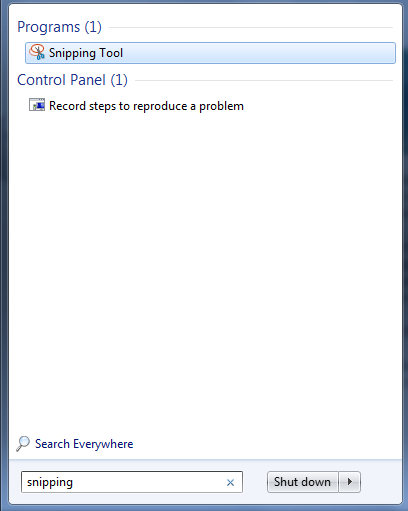
Search for Snipping.  If the tool is installed on your computer you will find the program.  Click on it one time.

When the tool opens you can choose New and click and drag a section of the screen to "snip".  Then you need to save the snipped portion.

On your Mac you will choose ctrl+shift+F3 for the entire screen or ctrl+shift+F4 for selecting a portion.


These saved pictures are especially helpful when sharing with Tech Support what you see on your computer screen and you need help.  Email the picture as an attachment so they know the exact message you are receiving.  Often they can diagnose a problem by looking at the picture. 

Happy snipping!