Showing posts with label tech tip. Show all posts

Tuesday, October 21, 2014

Google Calendar for Work and Home

I used to be addicted to my Outlook calendar.  I color coded everything!  Work events, kids, holidays, birthdays, to do list...EVERYTHING!  The one problem with my Outlook calendar was I couldn't take it with me.  Think 2009.  I did not have a Blackberry or an iPhone.  I did not have money for a phone plan anyway.  So, for Christmas I asked for a PDA.  It needed something that would work with my already established Outlook calendar, and had WiFi access, you know for when I went to Panera Bread or McDonalds. It could NOT rely on a phone plan to work.  So I got a cute little Pocket PC and took it everywhere.  It worked great, and my love affair with Microsoft continued. My husband at the time was using Google calendar already.  His band dates were on Google calendar, his work appointments, and I refused to convert.  "Email me if I need to know what's on your calendar," I would say.

Then it happened.  I got a MacBook.  I went back to school to teach and thought, I need a new computer, so many schools use Macs, I don't have a Mac, I don't know how to use a Mac...I better get in the loop.  Of course the Mac needs the Microsoft Office Suite too.  And it was so.  Problem...alert! Alert!  My Mac that communicated with my PC and shared my Outlook calendar would not communicate with the Pocket PC.  My organizational world was OVER.  I needed a new plan.  That is when I learned to embrace Google Calendar.  


I have 2 Google accounts. One for home, one for work.  I have 5 Google calendars, and share 2 additional calendars, and have access to view 3 other calendars.  It's not as complicated as it sounds because they are all color coded.

One of the best things about Google calendar is my school uses Google calendar as the district calendar so I can quickly save an activity on the district calendar to my own calendar, but only the activities that pertain to me and my building if I want.  


Tuesday, August 26, 2014

Print Screen


This week's tech tip is simple!  Often you need to save a screen you were working on or an error message that just popped up but you can not save it in the traditional save as... method and there is no print button.  This is when print screen becomes beneficial.


  • On your PC/laptop the keyboard has a Print Screen or PRTSCR button.  When you press this in most cases you see nothing happen.  What occurs is a copy of the current screen to your clipboard.  
  • Then you can open a software program like Paint or Microsoft Word and simply paste.  You will see your picture and you can resize, crop, edit, and print or save.
start button


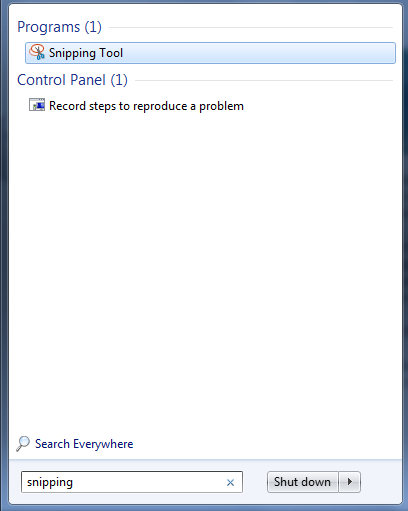
Another method is using the Snipping Tool.  At the Start button...


Search for Snipping.  If the tool is installed on your computer you will find the program.  Click on it one time.

When the tool opens you can choose New and click and drag a section of the screen to "snip".  Then you need to save the snipped portion.

On your Mac you will choose ctrl+shift+F3 for the entire screen or ctrl+shift+F4 for selecting a portion.


These saved pictures are especially helpful when sharing with Tech Support what you see on your computer screen and you need help.  Email the picture as an attachment so they know the exact message you are receiving.  Often they can diagnose a problem by looking at the picture. 

Happy snipping!