Showing posts with label tech support. Show all posts

Tuesday, March 24, 2015

Create a Google Form to track professional and parent contact

Why a form?
By using a form you don't have to remember what information to log and all the information is in one place and easy to access.  This type of information makes sense if you want to track all communication or log time spent on activities all in one place.  If you prefer to log information per student this might make more sense to put in your gradebook.  You can always copy the information from the form responses into your gradebook comments to keep a log AND keep with student records.  I find it easiest to keep all contacts in one place.  Emails are easy to save but you still may want to log emails and reference the save location in case you need documentation.  Either way, it's smart to log your communication somewhere and I found this to be a quick and easy fix.  The initial form takes 20 minutes to make and logging contacts at the time is a breeze.

 Start with a form that allows you to select the type of contact Parent or Professional


Question type choose from a list.
Then you can choose the box go to page based on answer if the form will be different based on the contact type.


I then select the information I want to collect.  I make sure I add a time/date option but the form will be automatically time stamped for the date you fill it out so if you fill it out at the time of the conversation you don’t have to put in a separate time/date.

The results will print to a spreadsheet for you to have a log.


Finally, share your link with yourself on your desktop.  I put it on my webpage.  It could be a resource in Schoology or you can put the link in a Word document and save the document to your desktop for easy access.


Tuesday, September 30, 2014

Tech Tip: Recording Your Screen

Have you ever wanted to show students how to do something but don't have time to create an entire how-to video or even find one?  If you have Smart Technologies Smart Notebook installed you can use the Smart tools to record an activity on your computer.  You don't have to use your Smartboard/Smart projector.


Below you will see a video I created showing how to access the Smart Recorder.


This method is good for last minute absences where you need to show a sub what to do.  Record it on your laptop and post. You can always go back later and add a voice over or make it pretty but this is a quick way to record steps for absent students to post on Schoology or send to Google Drive.   Ever considered Flipping your Class?  Show your students what to practice at home, then do the assignment in class together. 

This technique is another way to show tech support what is going on.  If you keep doing an action and not sure of a result and Print Screen doesn't seem to show the problem, consider recording a 5 - 15 second video and attach it to your ticket so they can see what's going on.

Happy Recording.

Tuesday, August 26, 2014

Print Screen


This week's tech tip is simple!  Often you need to save a screen you were working on or an error message that just popped up but you can not save it in the traditional save as... method and there is no print button.  This is when print screen becomes beneficial.


  • On your PC/laptop the keyboard has a Print Screen or PRTSCR button.  When you press this in most cases you see nothing happen.  What occurs is a copy of the current screen to your clipboard.  
  • Then you can open a software program like Paint or Microsoft Word and simply paste.  You will see your picture and you can resize, crop, edit, and print or save.
start button


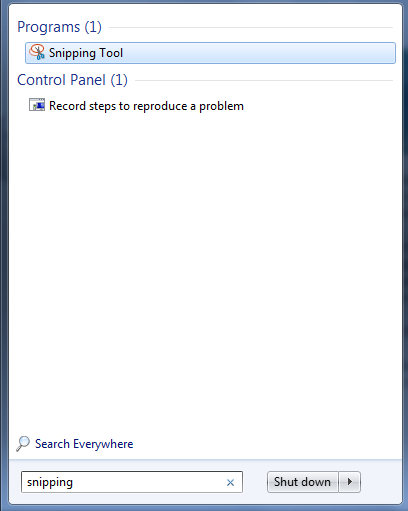
Another method is using the Snipping Tool.  At the Start button...


Search for Snipping.  If the tool is installed on your computer you will find the program.  Click on it one time.

When the tool opens you can choose New and click and drag a section of the screen to "snip".  Then you need to save the snipped portion.

On your Mac you will choose ctrl+shift+F3 for the entire screen or ctrl+shift+F4 for selecting a portion.


These saved pictures are especially helpful when sharing with Tech Support what you see on your computer screen and you need help.  Email the picture as an attachment so they know the exact message you are receiving.  Often they can diagnose a problem by looking at the picture. 

Happy snipping!