Monday, October 13, 2014

Sharing Files With Colleagues

I have found to never underestimate the power of sharing.  If you followed my previous tip you are taking a lot of pictures.  Maybe you would like to share them???  Sharing goes beyond pictures.

As a teacher there are a lot of resources that need to be shared and they may not be resources available in the student database.  For example, I'm in the Ohio Resident Educator Program and need to share documents with my mentor.  By using a Dropbox folder I can work on Word Documents downloaded from ODE and save them to a folder local to my computer.  Then I have access to them virtually anywhere and can share the folder with my mentor.  Dropbox is similar to Google Drive installed on your computer but does not try to convert your files to the Google format.  Check out Dropbox

View this video of how it works: Using Dropbox

Another method for sharing is the Google Drive.  Files in the Google Drive can be shared with others to view only or view and edit. I share files with my mentor using Google Drive yet share forms and documents with students and coworkers using Google Drive, especially those documents created in Google Drive.  It doesn't seem necessary for every teacher to collect and update the same data so I collect student favorites in a form and shared it with colleagues so they were in the loop too.

Learn more about collaborating with Google Drive below.


The key to either system is to make sure when the files are shared to edit that you have an understanding that it can be changed or even removed from the folder by the people sharing it.  If you want the files to be viewed and not edited make sure you choose that option. If you want the originals intact but want to allow others to edit a file make sure you make a copy first and share the copy.

And for this Tuesday...happy sharing!

Tuesday, September 30, 2014

Tech Tip: Recording Your Screen

Have you ever wanted to show students how to do something but don't have time to create an entire how-to video or even find one?  If you have Smart Technologies Smart Notebook installed you can use the Smart tools to record an activity on your computer.  You don't have to use your Smartboard/Smart projector.


Below you will see a video I created showing how to access the Smart Recorder.


This method is good for last minute absences where you need to show a sub what to do.  Record it on your laptop and post. You can always go back later and add a voice over or make it pretty but this is a quick way to record steps for absent students to post on Schoology or send to Google Drive.   Ever considered Flipping your Class?  Show your students what to practice at home, then do the assignment in class together. 

This technique is another way to show tech support what is going on.  If you keep doing an action and not sure of a result and Print Screen doesn't seem to show the problem, consider recording a 5 - 15 second video and attach it to your ticket so they can see what's going on.

Happy Recording.

Tuesday, September 23, 2014

Tech tip: Take pictures

Today's tech tip includes taking pictures. Use your phone, tablet, or a camera to record things you write on the board, student work,  or students working. I even have a scanner app on my iPad called scanner pro that scans to PDF so I can email student work to myself or other teachers as needed. You can add your pics to Google Drive or Dropbox straight from your mobile device or upload photos from a camera and organize moments into folders to use, or remind you to use later.  Besides how else will you Pinterest your classroom?

Tuesday, September 16, 2014

Tech tip Tuesday: Schoology App


Download Schoology app to your phone and tablet. 

Why? As teachers we all know that the day isn't over when the last bell rings but how do we balance our after-work lives with the papers we have to grade? I've found the Schoology app can help. If I'm sitting waiting on a pizza, or at a ball game waiting for it to start and I have my phone out about to peruse the Internet...I can look at a student assignment post a grade and mark one off the list. No lugging papers.  

Not using Schoology yet? Start.

Negatives to the app. Currently...
1) you cannot grade discussion posts
2) you cannot add a rubric to an assignment


Tuesday, September 2, 2014

Brainstorming: Near and Far

Last week I decided I wanted to brainstorm ideas for an upcoming project in class.  Each student has a computer so I wanted to do it using their devices.  I considered a Google form but I wanted it to be in real time.  Google forms allow you to see previous responses AFTER you submit if the option is selected. Then I thought about Poll Everywhere but it's so difficult to organize the ideas and work on them later after collecting the data.  That's when a quick Internet search led me to Stormboard.  Stormboard is free to educators through December 2014 so check it out.

Stormboard allows you to collect ideas, color code them, vote on your favorite ideas and organize ideas in a number of creative ways.  I fould for large classes it works best if you only have 4-5 brainstormers at a time but you can enter your idea, rearrange and categorize it then print a report or Wordle of your results.

I created a Stormboard for us to use to brainstorm for fun!  What is your favorite Tech resource for your classroom?  

P.S. you can signup using your school Google account if you have one and have your students do the same.  THEN you can see their official names instead of them making up their own accounts.

P.P.S. I don't get anything for you using this service or following the link.  There is no free space etc.


Tuesday, August 26, 2014

Print Screen


This week's tech tip is simple!  Often you need to save a screen you were working on or an error message that just popped up but you can not save it in the traditional save as... method and there is no print button.  This is when print screen becomes beneficial.


  • On your PC/laptop the keyboard has a Print Screen or PRTSCR button.  When you press this in most cases you see nothing happen.  What occurs is a copy of the current screen to your clipboard.  
  • Then you can open a software program like Paint or Microsoft Word and simply paste.  You will see your picture and you can resize, crop, edit, and print or save.
start button


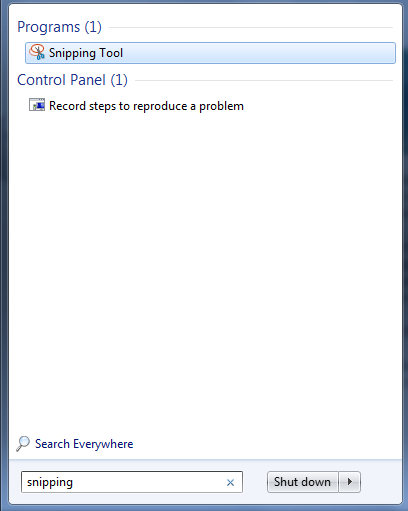
Another method is using the Snipping Tool.  At the Start button...


Search for Snipping.  If the tool is installed on your computer you will find the program.  Click on it one time.

When the tool opens you can choose New and click and drag a section of the screen to "snip".  Then you need to save the snipped portion.

On your Mac you will choose ctrl+shift+F3 for the entire screen or ctrl+shift+F4 for selecting a portion.


These saved pictures are especially helpful when sharing with Tech Support what you see on your computer screen and you need help.  Email the picture as an attachment so they know the exact message you are receiving.  Often they can diagnose a problem by looking at the picture. 

Happy snipping!

Friday, August 22, 2014

Connecting a Projector


Video: Connect to a projector

Getting back to school finds many teachers eager to show kids new "stuff" but what happens when you're prepared on your laptop and you want to show the entire class.  I received many questions this week stating "what's wrong with my projector?"

If you see your desktop background screen on your projector but not the“stuff” you want to project, odds are good that you are in extended screen mode. 

To fix this you go to start ->


control panel -> 


(depending on your setup you may have to go to appearance and settings before display) -> 


display ->


connect to a projector -> 


select duplicate.